
Generate and review an attendance report
When reviewing attendance, it is recommended to generate an attendance report rather than work directly on the Attendance page. This reduces the risk of accidentally changing a student’s attendance record. In Canvas, the report is sent to the teacher by email as a CSV file. That file can then be downloaded and imported into a spreadsheet program such as Excel. Canvas sends the report by email, and Microsoft recommends importing UTF-8 CSV files through Data > From Text/CSV rather than opening them like a regular Excel workbook.
Run the attendance report
- Click Attendance in the course navigation.
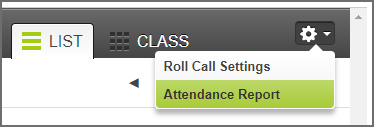
- Click the gear icon in the upper-right corner.

- Select Attendance Report.
- Enter your email address.

- Click Run Report. Canvas sends the report as a CSV file to your email address.

If needed, use the available filters to limit the report data. For example, entering a student’s email address in SIS Student ID can generate a report for that student only.
The Roll Call report usually arrives by email almost immediately. Click the link in the email to download the CSV file.
Import the CSV file into Excel
Do not open the CSV file in Excel the same way you would open a normal .xlsx file. If the file contains Icelandic characters, import it using the Text/CSV import option with Unicode (UTF-8) encoding.
- Open Excel and create a Blank Workbook.
- Go to the Data tab.
- Click From Text/CSV.

- Locate and select the report file, likely in your Downloads folder.
- Click Import.
- In the import window, select Unicode (UTF-8) under File Origin.

- Complete the import.


Filter the data in Excel
In Excel, you can use filters to narrow down what you want to review.
- Make sure Filter is turned on in the Data tab.
- To review, for example, one student’s absences, click the arrow in the Student Name column and select only that student.

- Then click the arrow in the Attendance column and select only Absent.

By using the filter arrows at the top of each column, you can limit the report to the specific data you want to review.