
About grade calculation
Attendance is shown as a percentage based on the attendance records entered so far.
For example, if a student has attended the first three class sessions, that student’s attendance grade at that point is 100%.
To calculate attendance correctly, you must also mark students as absent or late when applicable. If you mark only the sessions a student attended and leave all others unmarked, the student will still show 100% attendance. This happens because the calculation includes only class sessions for which a status was recorded, such as present, absent, or late.
The Roll Call Attendance assignment
After attendance is recorded for the first time, Canvas automatically creates the Roll Call Attendance assignment and a corresponding column in the Gradebook. Attendance records are linked to this assignment.
Important: to avoid errors in the attendance grade calculation, do not:
- rename the assignment
- hide the assignment
- delete the assignment
These actions break the connection between the attendance records and the Roll Call Attendance assignment.
Changing the assignment points
The Roll Call Attendance assignment is created with 100 points by default. In most cases, it is recommended not to change the point value.
If attendance does not count toward the final grade and you only want to change the number of points used for attendance, you can change the point value, provided that:
- the point value is not changed again later, and
- the change is made after attendance has been recorded for the first time, and the attendance marking is then repeated.
- Open the assignment.
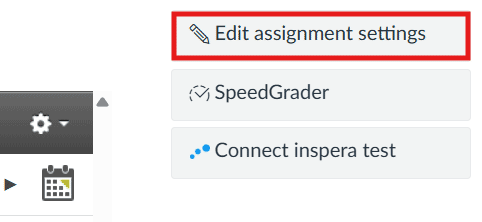
- Click Edit Assignment Settings in the upper-right corner.
- Enter the new point value.
- Click Save at the bottom of the page.

Note: the attendance assignment is created only after attendance has been recorded at least once for at least one student.
Attendance must be marked again after changing the point value
After changing the assignment’s point value, attendance must be re-marked to update the attendance grade.
- Go to Attendance in the course navigation.
- Click Unmark all.
- Record attendance for all students again, as usual.
The percentage value will then update correctly in both SpeedGrader and the Gradebook. If the point value was changed immediately after the first attendance entry, you only need to repeat the attendance marking for that one session.
If attendance should not count toward the final grade
If the attendance grade should not be included in the final grade, this must be set in Roll Call Settings.
- Click Attendance in the course navigation.
- Click the gear icon in the upper-right corner and select Roll Call Settings.

- Select Do not count attendance toward final grade.

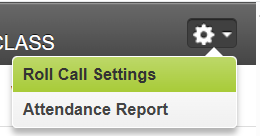

This setting is then transferred to the attendance assignment. It is recommended to set this in Roll Call Settings rather than in the assignment settings. Students can still see their own attendance and receive an attendance grade, but that grade will not be included in the course final grade.
Removing the Roll Call Attendance assignment from grading
It is possible to remove the attendance assignment from grading in the Gradebook. Students will still see the assignment, but they will no longer be able to track their own attendance grade in the usual way.
Note: this change cannot be reversed. Once the assignment has been changed to non-graded, it cannot be changed back to a graded assignment. Make sure this is really what you want before making the change.
- Open the assignment.
- Click Edit Assignment Settings in the upper-right corner.
- Scroll down to Display Grade as.
- Select Not Graded.
- Click Save at the bottom of the page.