
By connecting Zoom to Panopto, Zoom meeting recordings can be made available in Panopto and can appear automatically in a Canvas course. The connection must be set up in the user’s settings on the Panopto server. Panopto’s Zoom integration lets users choose a default folder for Zoom recordings, which determines how recordings are routed to the correct course folder.
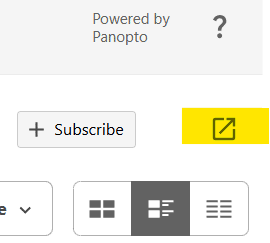
- Sign in to the Panopto server. If you are already in the course in Canvas, click the Panopto Video link in the course navigation menu and then click the Open in Panopto icon in the top right corner. You can also go directly to the server here: rec.hi.is. Be sure to select Háskóli Íslands Canvas from the dropdown menu when signing in.
- Open User Settings in the top-right corner, under your profile picture or initials.
- Select the course folder where Zoom recordings should be placed so they appear in the correct course.


- When starting the recording in Zoom, make sure to choose Record to Cloud.
- When the meeting ends, agree to publish the recording. It may take 4–6 hours for the recording to become available in Panopto. The recording is also accessible from Zoom.