
This is probably one of the most common problems students encounter. Often, one student reports the issue even though none of the students can actually open the file. To check whether students can access the content, do the following.
Open the course and go to Student View, i.e. click View as Student in the upper-right corner. A purple border appears around the page.
Find the link to the file/content and click it.
If the file opens normally in Student View, the problem is probably on the student’s side. You can refer the student to the IT Help Desk.
If the file is not visible in Student View, it needs to be published for students. Leave Student View, using the button in the lower-right corner, and publish the file by clicking the availability icon to the right of it and selecting Publish.


Hidden file
If a link to the file has been added to a page, students may be able to see it, but when they click it, they receive a message saying the file is locked. This means that the file settings need to be changed in the course files.
Go to Files, find the file, and make it available to students.
Go back to Student View and check that students can open the file.
Ask for assistance if you are unable to resolve the issue.
This happens fairly often and is usually caused by a teacher giving one or more students an extended due date incorrectly.
At the bottom of the assignment settings, the assignment is usually assigned to Everyone. The mistake occurs when the teacher adds the names of, for example, two students who should receive an extended due date in the Assign to field, but at the same time removes Everyone. As a result, the assignment is no longer assigned to all the other students. They can no longer see the assignment, and their submissions disappear along with grades and feedback if the submissions have already been graded.
When students need a different due date from the rest of the class, you must always create a new Assign to box with a separate date and time.
Solution
Open the assignment and click Edit.
Scroll down the page and click + Add at the bottom. A new Assign to box is added.
Enter Everyone in the Assign to field. Canvas changes this to Everyone Else.
Set the original assignment date and time.
Save.
This restores the students’ submissions, grades, and feedback, if the submissions had already been graded.
You can create as many assignment date and time settings as needed for students with different due dates. See also the instructions on giving a student an extended due date in the assignment settings.
There can be several reasons why the final grade is not calculated correctly. They are not all covered here, but the most common cause is a misunderstanding about the purpose of points in assignments.
Assignment points represent the maximum score, typically 10. However, technically, there is nothing preventing teachers from using a different number of points, as long as grading is done on the correct scale.
An assignment worth 20 points must be graded on a scale from 0 to 20, where 20 is the maximum score.
Canvas cannot include an assignment with no points in the final grade calculation.
If an assignment should not count toward the final grade, it can still have points. Students are often graded on assignments that do not count toward the final grade. However, the option Do not count this assignment towards the final grade must be selected in the assignment settings.
Assignments graded as Complete/Incomplete must also have points if they are to count toward the final grade. Complete awards the full number of points, while Incomplete awards 0.
To set the weight of an assignment in the final grade, the assignment must be placed in an assignment group, and the weight must be set for that assignment group. If more than one assignment is placed in the same assignment group and all assignments should have equal weight, it is important that they have the same number of points.
Points affect weighting when more than one assignment is placed in the same assignment group.
Example:
There are two assignments in the same assignment group. One is worth 10 points and the other 20 points. The grade for the 20-point assignment then has twice the weight of the 10-point assignment in the assignment group calculation.
Please also review the instructions on assignment group weighting, points, and grade calculations.
A common reason a student cannot access a recording is that the recording is in the wrong folder in Panopto, for example, in a folder belonging to an older course, or that the recording was linked directly instead of being added with the Panopto tool in Canvas. Panopto recordings are not copied or moved when a teacher imports course content from a previous course into a new one.
Solution: Move the recording to the course’s Panopto folder, or add it to Canvas using the Panopto tool.
See also:
If grades for an assignment have been accidentally deleted or changed, you can check the Gradebook History. Filters are available, for example, to view only changes made to a specific assignment, a specific student, or by a specific grader. Gradebook History is available from the menu in the upper-left corner of the gradebook.
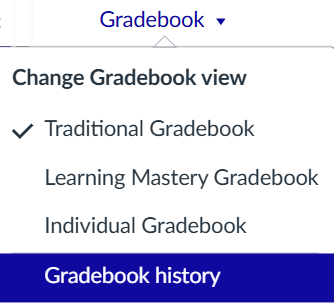
Another option for recovering previous assignment grades is to use the Canvas test or beta environment. In this case, it is best to contact the Canvas team at the Teaching Centre: kennslumidstod@hi.is. If the grades are still available there, it may be possible to retrieve them by downloading the gradebook as a CSV file or by taking a screenshot.
If an assignment has accidentally been deleted from Canvas, it can often be restored using the course’s undelete URL.
Solution
Open the course in Canvas.
Go to the course home page.
Click in the browser address bar.
Add
/undeleteto the end of the course URL.
Example:https://haskoliislands.instructure.com/courses/12345/undelete
Press Enter.
A page opens showing content that has recently been deleted from the course.
Find the assignment in the list and click Restore.
Go back to the course and check whether the assignment has been restored correctly.
Note
The assignment is restored under Assignments in the course navigation menu. If the assignment was previously in a module/week, it must be added there again.
This method can be used to restore:
Regular Canvas assignments; rubrics are not restored with the assignment
discussions, pages, and Classic Quizzes
Only recently deleted items can be restored.
New Quizzes and content created with external tools, such as FeedbackFruits, cannot be restored using this method.