
When the Turnitin plagiarism framework is enabled for an assignment, a Turnitin indicator may appear in the student’s gradebook cell. These indicators also appear in SpeedGrader. Teachers can click the Similarity Score in SpeedGrader to open the Similarity Report in Turnitin and review the submission in more detail.
What the indicators mean
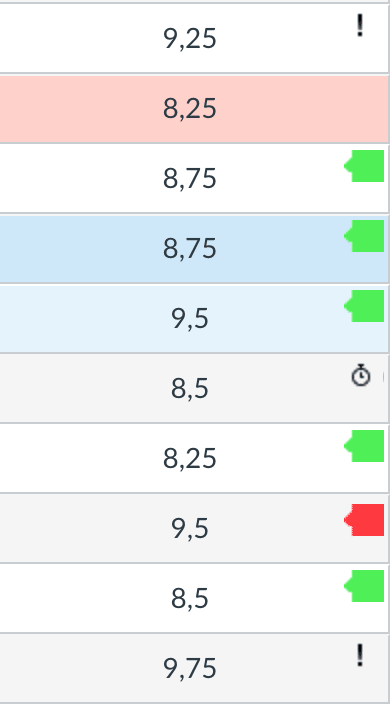
- Green indicator
The submission has a similarity score between 0% and 20%. - Red indicator
The submission has a higher similarity score. In Canvas documentation, red indicators are used for scores above 20%. A higher score does not by itself prove plagiarism, but it does mean the submission should be reviewed more closely in Turnitin. - Clock icon
The file is still being processed by the plagiarism service. - Error icon
The submission could not be sent to or processed by the plagiarism service. If needed, the submission can be checked again from SpeedGrader.
Important notes
- These indicators appear only when Turnitin has been enabled for the assignment through Canvas’s plagiarism framework.
- If a student submits multiple files, the gradebook displays the highest originality score. The individual files and their reports can be reviewed in SpeedGrader.
- The gradebook cell background color may come from Canvas, while the Turnitin symbol shows the plagiarism status. These should be read separately.