
How to Post or Hide Grades
Post grades for an assignment
- Open gradebook in the course menu.
- Go to the assignment column you want to manage.
- Click the column options menu and choose grade posting policy or post grades, depending on what you want to do.

- Choose whether to post grades to everyone or only to students with graded submissions.
- Confirm your choice.
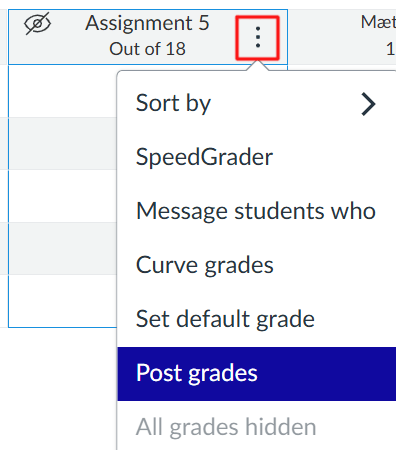
At the University of Iceland, the default grade posting policy for all courses is manual, which means that grades remain hidden from students until the teacher posts them. Teachers can change the course grade posting policy to automatic or set a separate posting policy for an individual assignment. With an automatic posting policy, grades become visible to students as soon as they are entered. With a manual posting policy, grades remain hidden until the teacher posts them.
Are grades definitely hidden?
Open gradebook by clicking grades in the course menu.
Click the gear icon in the top right corner.
Select the grade posting policy tab.
Make sure manually post grades is selected. This means that assignment grades are hidden until the teacher posts them manually.
Final Grade Visibility
About the final grade
The final grade for the course is shown in the gradebook as a percentage and rounded to the nearest whole and half grade on the 0–10 scale.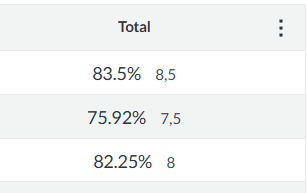
Hiding the final grade and total grades from students
In some cases, it may be useful to keep the final grade hidden while the course is in progress and show it only at the end, once all grades have been submitted.
Go to settings at the bottom of the course menu on the left.
At the bottom of the page, check hide totals in student grades summary.

Click update course details.
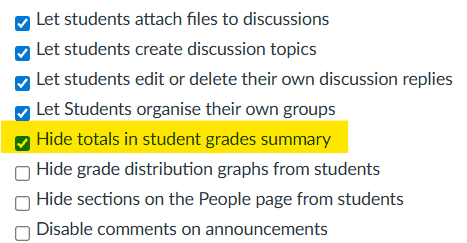
This setting hides both the final grade and the assignment group totals from students.
Giving 0 to Missing Work
Give students 0 for missing work
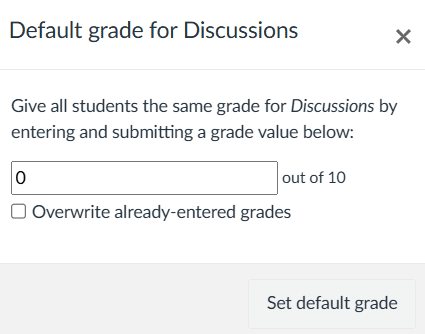
For an individual assignment, teachers can use set default grade to apply a score such as 0 to students who have not submitted. This updates the gradebook, unlike viewing ungraded work as 0, which is only a teacher view setting.
- Open gradebook.
- Open the options menu for the assignment column.
- Choose set default grade.

- Enter 0.

- Save.
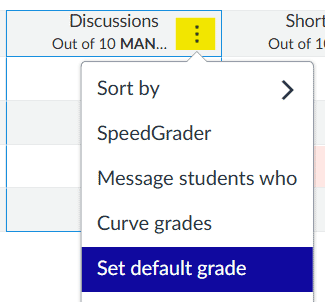
Missing submission policy set at the start of the course
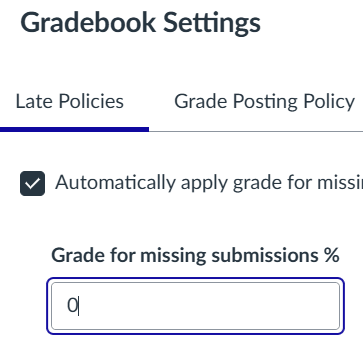
By setting the gradebook at the start of the course so that a student who does not submit an assignment automatically receives 0, teachers can avoid entering the zero manually.
Go to gradebook by clicking grades in the course menu.
Click the gear icon in the top right corner.

Check automatically apply grade for missing submissions and enter 0 in the field below.

Click update.

Messaging students from the gradebook
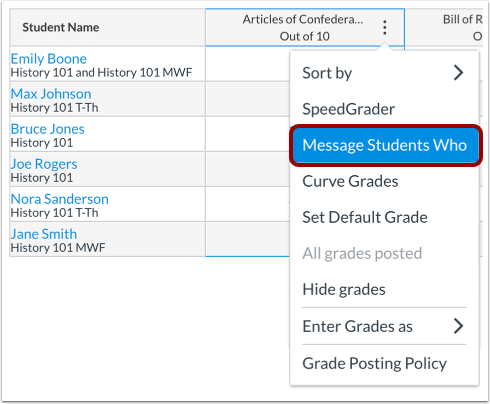
Teachers can send a message from the gradebook to a predefined group of students in a specific assignment or quiz column. The message is sent through the Canvas inbox. You can choose students based on submission or grading status, for example students who have not submitted or students whose grade is above or below a selected value.
- Open gradebook by clicking grades in the course menu.
- In the column for the assignment or quiz, click the three-dot menu in the column header.

- Select message students who.
- Choose one of the available groups:
- haven’t submitted yet
- haven’t been graded
- scored less than
- scored more than
- Canvas displays the names of the students who belong to that group.
- If needed, remove individual names from the recipient list, for example, if a student has been given an extension or is not required to submit the work.
- Write your message and click send.
Learn more: How do I send a message to students from the Gradebook?