Heim > Teachers > Grades and Feedback > Finalizing the gradebook

Finalizing the Gradebook

Gradebook checklist before transferring final grades

For final grades to be calculated correctly, and for grades to be transferred from Canvas to Ugla, the gradebook must be set up properly. In particular, there must be no empty grade cells for work that counts toward the final grade, and all grades must be posted to students.


1. Unweighted Assignments

If an assignment should not count toward the final grade, this must be set in the assignment settings.

Steps

  1. Open Assignments in the course navigation.
  2. Create a new assignment or edit an existing one.
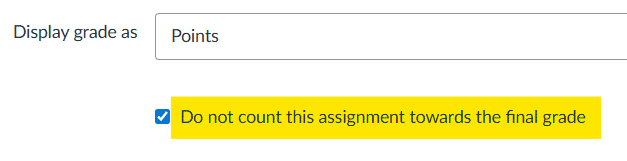
  3. In the assignment settings, select Do not count this assignment toward the final grade.
    Do not count this assignment towards the final grade
  4. Click Save.

Canvas will then exclude the assignment from the final grade calculation.

2. Missing assignments = 0

If a student was expected to submit an assignment but did not do so, and should receive a grade of 0, that 0 must be entered in the gradebook.

The simplest way is to type 0 directly into the student’s grade cell.

If many students are missing the same assignment, it may be quicker to use Set Default Grade.

Steps

  1. Open Grades.
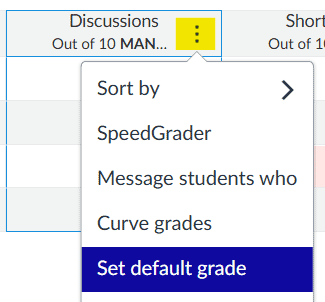
  2. Hover over the assignment column header and click the Options menu.
  3. Select Set Default Grade.
    set default grade
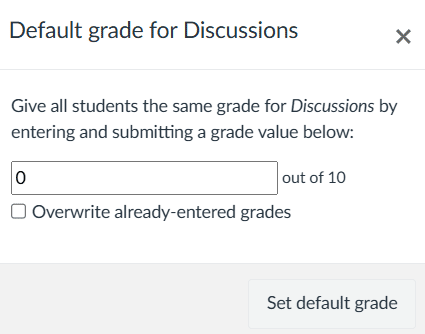
  4. Enter 0.
    set default grade
  5. Click Set Default Grade.

This applies 0 to students who do not yet have a grade for that assignment.

You can also use the gradebook’s missing submission policy so that missing work automatically receives 0. This should be set up at the beginning of the course, before submissions begin.

Steps

  1. In Grades, click the gear icon in the upper right corner.
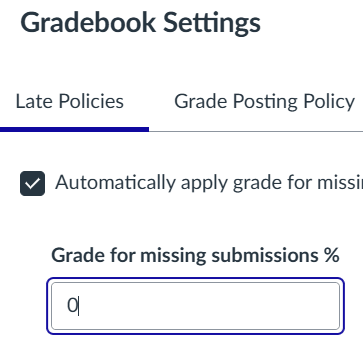
  2. Open the Late Policies tab.
  3. Set the Missing Submission Policy to 0.
    late policies for missing submissions
  4. Save the settings.

3. Excused assignments

If submission of an assignment was optional and a student did not submit it, the assignment should be marked as Excused in the gradebook. An excused assignment is excluded from the student’s total grade, so the weight of the student’s other graded work is adjusted accordingly.

Steps

  1. Open Grades in the course navigation.
  2. Find the student and the assignment in the gradebook.
  3. Click the grade cell for that assignment.
  4. Click the small arrow that appears in the grade cell.
    click arrow to open grade detail panel
  5. In the grade detail panel, select Excused.

After that, the assignment no longer counts toward that student’s final grade.

See also: How do I use the icons and colors in the Gradebook?
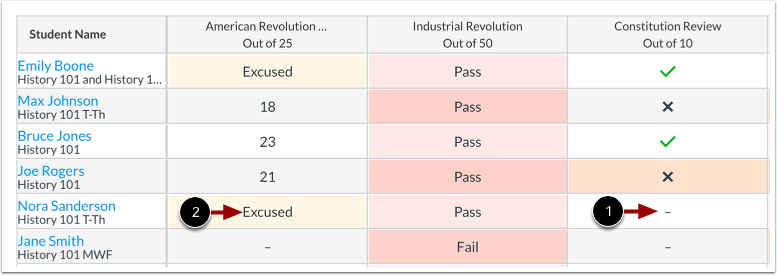
Gradebook showing a dash for no grade and Excused for an excluded assignment.

A grade cell showing 0 means the student received zero points for the assignment. A cell with a dash means no grade has been entered for that student for that assignment [1]. If the assignment should not count toward the student’s course total, it can be marked as Excused instead [2].

4. Post all grades

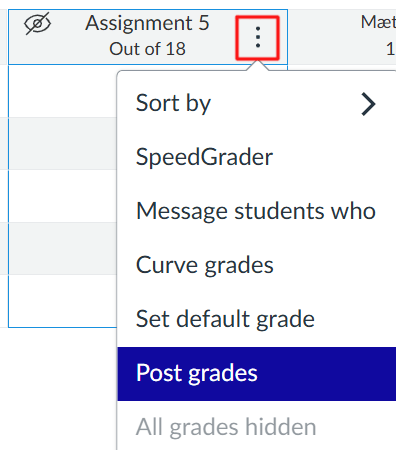
Final grades cannot be transferred from Canvas to Ugla unless grades for all assignments and quizzes in the gradebook have been posted. If a visibility icon with a crossed-out eye appears for an assignment, some grades in that column are still hidden from students.

Steps

  1. Open Grades in the course navigation.
  2. Hover over the assignment name at the top of the column.
  3. Click the three-dot menu that appears.
  4. Select Post grades.
    posting grades
  5. In the panel on the right, choose Everyone.
  6. Click Post.

After that, the grades in that assignment column are visible to students. In Canvas, the three-dot menu appears when the pointer is placed over the assignment name at the top of the column.

Final Grade Override

In some courses, students must achieve a minimum grade in specific assessment components or in all components to pass the course. In that situation, the calculated final grade or weighted average in Canvas may appear to be a passing grade even though the student has not actually met all course requirements. This can easily cause confusion for students. To display the correct final result in Canvas, use Final Grade Override.

1. Enable Final Grade Override

Final Grade Override must first be enabled in both the course settings and the gradebook settings.

In course settings

  1. Open Settings in the course navigation.

  2. Select the Feature Options tab.

  3. Find Final Grade Override.

  4. Enable the feature. 

In the gradebook

  1. Open Grades.

  2. Click the gear icon in the upper right corner.

  3. Open the Advanced tab.

  4. Select Allow Final Grade Override.

  5. Click Apply Settings.

An Override column is then added after the final grade column.

2. Enter the override grade correctly

The override must be entered carefully. Canvas supports entering a specific percentage for the final grade override, and Canvas then applies the course grading scheme to convert that percentage to the displayed course grade. 

Important
Enter the override as a percentage, for example 43 for 43%. Canvas then converts that percentage to the course grading scale and rounds it according to the grading scheme used in the course. Only enter an override grade for students whose final result needs to be changed.

If the student should receive 10% or less, extra care is needed. Because Canvas interprets override values through the course grading scheme, entering a number such as 10 or 4 may produce a grade based on the lower threshold for that grade in the scheme, rather than the percentage a teacher may expect at first glance.

Examples

Example 1
If 10 is entered in the override column, Canvas does not treat it as 1.0 on a 0–10 scale. Instead, Canvas applies the grading scheme and may display grade 10, based on the lower threshold for that grade (97,5%.).

Example 2
If 4 is entered in the override column, the result is not necessarily 40%. Canvas may instead use the lower grade 4 threshold in the course grading scheme. In a grading scheme where grade 4 starts at 37.5%, Canvas will display that lower bound rather than 40%. 

Check the grading scheme below

Before entering an override grade, review the grading scheme shown below. Canvas interprets override values according to this scale, so the displayed final grade depends on the percentage boundaries for each grade.

Final Grade Rounding: Check the Grading Scheme

Þetta er einkunnaskalinn sem liggur til grundvallar við námundun lokaeinkunnar.

tölulegur skali 0-10 í heilum og hálfum