Course Syllabus Template
Template content
The template is divided into the following sections, in addition to a cover page: About the course, learning outcomes, teachers, course materials, assignments and exams, schedule, assessment and grades, course policies and rules, communication, and support resources.
Each section includes guidance for teachers in red text. In some cases, it also contains text for students that the teacher may choose to leave unchanged, for example in the sections on communication and support resources, which students can use as needed.
View syllabus template in a course.
1. Import the template from Canvas Commons
To begin, import the template into the course. The template does not alter the course itself, since it is provided as a page that is simply saved in the course pages area.
- Open Commons in the Canvas global navigation menu, the blue sidebar.

- In the search field at the top of the page, enter one page syllabus.
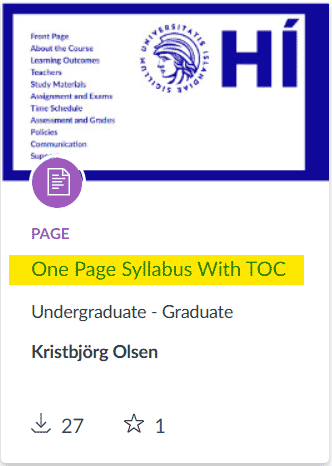
- Click the One Page Syllabus link.

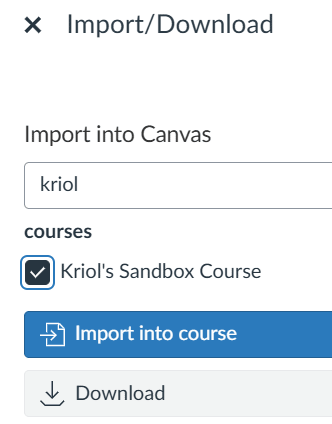
- Click Import/Download on the right.
- Find and select the course and click Import into Course.

The template will then be saved as a page in the course pages area.
2. Set up the template in the course
To use the template, copy the HTML code from the template page and paste it into the syllabus HTML editor.
- Open Pages in the course navigation menu.
- Click Created At at the top so that the newest pages appear first.
- Open the page that contains the template kennsluáætlun á einni síðu and select Edit.
It can be practical to work on the syllabus content first within the template page. The reason is that Canvas pages allow you to restore an earlier version, for example the version saved 30 minutes ago or yesterday. This is not possible when the content is edited directly in the syllabus area.
If the teacher wants to change the links in the table of contents, it is recommended to type the new text directly into the link itself and then carefully delete the letters on either side. Do not use Link Options, as this will break the link.
To transfer the content of the template page into the syllabus, open the editor’s HTML view, copy all of the code, and paste it into the HTML view of the syllabus editor.
See the video below for further guidance.
It may also be helpful to become familiar with Canvas Commons.