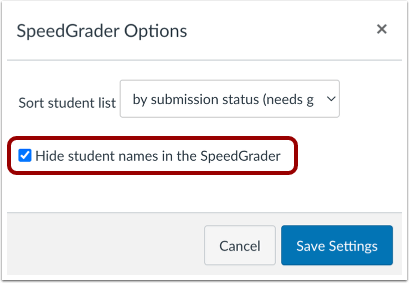
Anonymous grading enabled in the assignment settings
This option lets you decide, in the assignment settings, whether grading should be anonymous. Student names will then be hidden in SpeedGrader.
Anonymous grading must first be enabled in the course Feature Options.
Click Settings at the bottom of the course navigation menu.
Click the Feature Options tab near the top of the page.

Find Anonymous Grading, click the state icon, and select Enabled.
After this feature has been enabled for the course, an anonymous grading option will appear in the assignment settings.Open the assignment that should use anonymous grading and click Edit.
Scroll down, select Graders cannot view student names, and save the assignment.



See also: How do I add an assignment that includes anonymous grading?
Anonymous grading enabled in SpeedGrader
This option applies to the individual user/teacher. Student names are hidden in SpeedGrader for that teacher while the setting is active. If there is more than one teacher in the course, each teacher must enable the setting for themselves.
Open the assignment and go to SpeedGrader.
Click the Settings icon in the upper-left corner and select Options.

Select Hide student names in SpeedGrader and save the settings.