
1. Enable weighted assignment groups
In the course menu, click Assignments.
Click the three-dot menu in the top right.

Select Assignment Groups Weight.
Check Weight final grade based on assignment groups.

Enter the percentage for any groups that already exist.

Click Save.
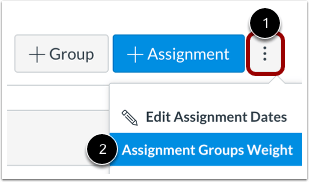
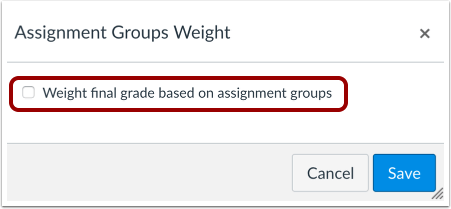
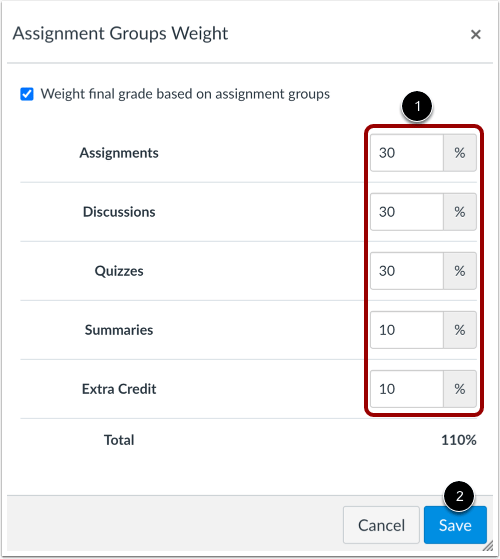
Canvas uses assignment groups to weight the final grade, and the percentage is attached to the group itself.
2. Create assignment groups
In Assignments, click + Group in the top right.

Enter a name for the assignment group.
Enter the group weight in % of total grade.

Click Save.

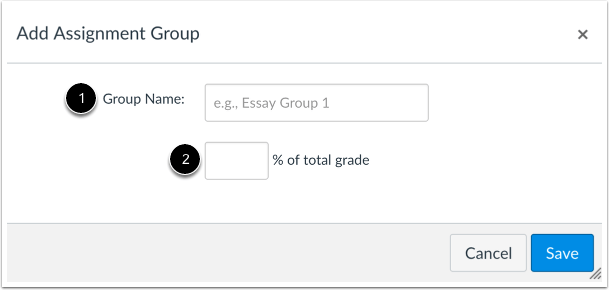
You must create assignment groups before you can assign percentages to them. As soon as a group is created, it is also reflected in the Gradebook.
3. Place assignments in the correct group
When you create an assignment, you also choose its assignment group in the assignment settings. The same applies to graded discussions. (Instructure Community)
Open the assignment and click Edit.
Under Assignment Group, select the correct group.

Save the assignment.

A teacher can also create a new group while setting up an assignment by selecting a new assignment group in the assignment settings.
4. Weight a single assignment
If one assignment should have its own weight, place it in its own assignment group and give that group the desired percentage. Canvas does not weight individual assignments separately inside a weighted group. Instead, weighting is done through assignment groups.
5. Move assignments between groups
Assignments can be moved from one group to another on the Assignments Index page. You can also reorder assignment groups there. Canvas recommends checking that each assignment is in the correct group when using weighted grading.
How do I use the Assignments Index Page?
6. Drop one or more lowest scores in a group
Assignment group rules let you:
- drop the lowest score,
- drop the highest score, and
- prevent specific assignments from being dropped.
To edit these rules:
On the Assignments page, click the three-dot menu for the assignment group.

Select Edit.
Set the rule, for example how many lowest scores to drop.
Save.
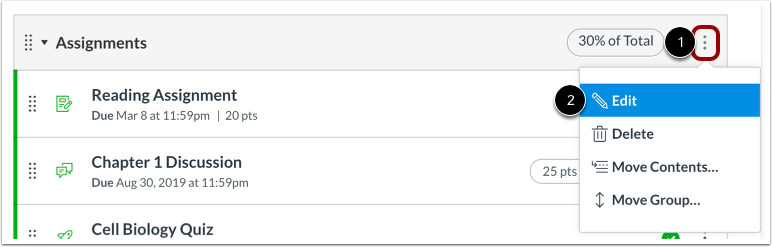
Canvas drops the score or scores that produce the best possible result for the student within that assignment group. It is based on the effect on the group total, not simply on the lowest percentage. That means a score with a higher percentage can sometimes be dropped if it has a larger negative effect on the total points.
A practical approach is to set the default grade to 0 for assignments in a group where the lowest score will be dropped, and then explain this to students. When students receive real grades, those grades replace the zeros automatically. This workaround is commonly used so that missing work is included when Canvas applies the drop rule.
Example: A group contains four assignments, and the lowest one will be dropped. A student has grades of 8, 8.5, and 9, but does not submit the fourth assignment. If the missing assignment is left blank, Canvas does not calculate from an empty cell. If it is entered as 0, Canvas can drop that 0 instead of dropping one of the earned grades. This is why setting a default grade of 0 can be important in this situation. This example reflects how Canvas handles drop rules in practice.
How do I create rules for an assignment group?
7. Complete/Incomplete assignments
Canvas supports Complete/Incomplete as a grading type. Complete/incomplete assignments are shown as full credit or no credit based on the assignment’s point value. For example, a 10-point complete/incomplete assignment is recorded as either 10 or 0. If such an item should count toward the final grade, it must therefore have points assigned to it. If a complete/incomplete assignment is in its own assignment group, it does not matter whether it is worth 1 point or 10 points, because the group weight determines its share of the final grade. But if it is placed in a group with other assignments, all items should have the same point value if they are meant to count equally within that group. This follows from how Canvas calculates assignment group totals by points.
8. Assignments that should not count toward the final grade
If an assignment should be graded but should not count toward the final grade, you can check Do not count this assignment toward the final grade in the assignment settings.

Canvas shows an indicator in both the Gradebook and the student Grades page that the assignment is excluded from the course total.
Important: According to Canvas documentation, this option applies to assignments only. It does not apply to graded discussions or quizzes. For graded discussions or quizzes that should not affect the final grade, place them in an assignment group with 0% weight instead.