
The availability window determines when the exam can be taken. It is defined by the Available From and Until dates and times. In many cases, the availability window is set slightly longer than the actual exam time limit. It must take into account students with accommodations and students who start later than planned. The availability settings are the same in both Canvas quiz engines.
The Available From time determines when students can open the exam and view the questions. This should always be set when the exam is created, or at the latest before any questions are added.
If no Available From time is set, students may be able to open the exam and see the questions as soon as the first question has been added.
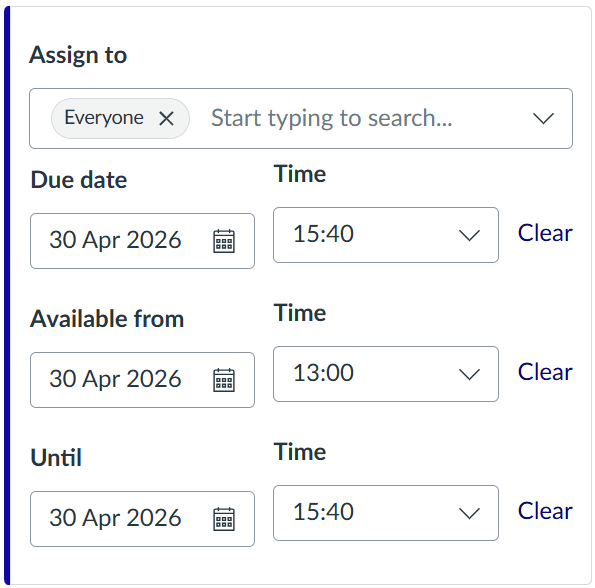
The Until time closes the exam for all students, regardless of how much time they have used and regardless of whether they have extra time. After this time, students can no longer answer questions. To make full use of the time limit, a student with a 2-hour time limit must start no later than two hours before the Until time. A student with an additional 30 minutes must start no later than two and a half hours before the Until time.
When setting the Until time, it is therefore essential to take into account the student with the longest exam time, for example a student with accommodations. In quizzes, the Until time is usually set to match the due date.
Example 1
The planned exam time is 2 hours, but some students are entitled to an additional 30 minutes. The availability window must therefore be at least 2 hours and 30 minutes long. In practice, teachers often make the availability window slightly longer to allow some flexibility for students who start a little late. It is common to make the window five to ten minutes longer than the longest individual exam time.
Example 2
The planned exam time is 2 hours, but the exam remains available for two and a half days. Students may start the exam at any time during that period. The time limit is set to 2 hours for the standard student, while the period between Available From and Until spans 2.5 days. A student who wants to use the full 2 hours must begin no later than 18:00 on April 1.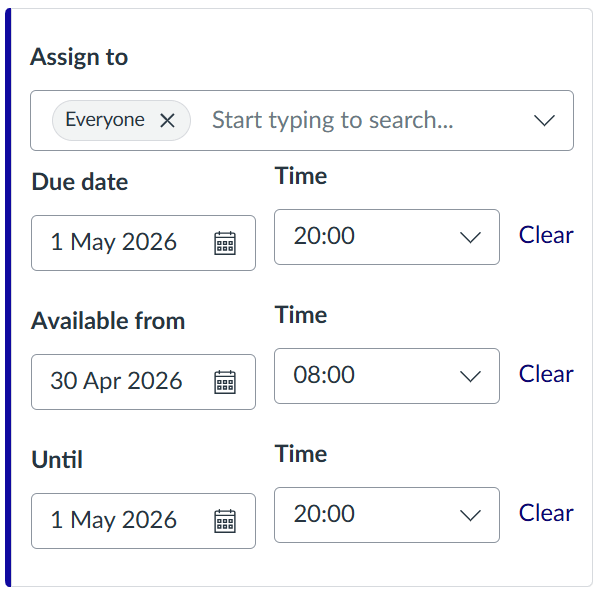
The time limit is the amount of time a student has to complete the exam once it has been opened and the questions are visible. If the student does not submit manually, Canvas submits the quiz automatically when the time limit expires.
A countdown clock is shown during the exam when a time limit has been set. If no time limit is set, the countdown clock does not appear.
The time limit should be set for the standard student, not for students with accommodations. It is usually shorter than the overall availability window.
Classic Quizzes
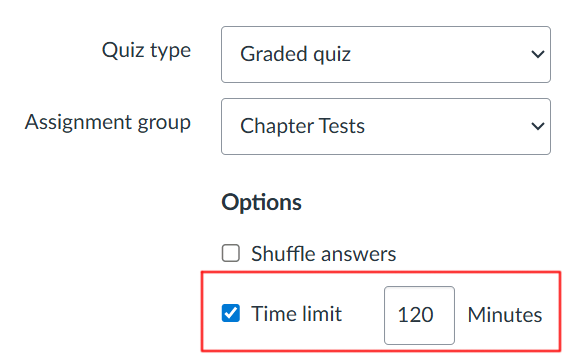
In Classic Quizzes, the time limit is set in the quiz settings page.
New Quizzes
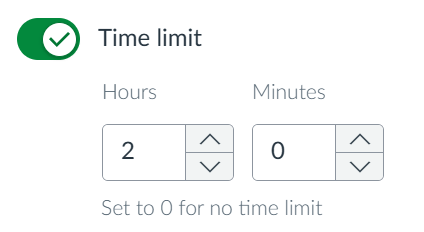
In New Quizzes, open the quiz, go to Build (at the bottom), and then select the Settings tab at the top of the page. Check the option for a time limit and enter the length of time. The settings save automatically.
When setting the availability window for an exam, it is essential to allow enough time for students with accommodations.
In Canvas, teachers must manually assign extended exam time for students with accommodations. Information about students who are entitled to extra time, and the amount of extra time, is provided by Student Counselling and Career Services.
Students with accommodations are often entitled to longer exam time. Students who require academic accommodations must contact Student Counselling and Career Services, and, as a rule, an accommodation agreement should be in place before studies begin and no later than October 1 for the autumn semester and March 1 for the spring semester.
Rules on academic accommodations
Please note that Inspera retrieves information about a student’s extended exam time automatically from Ugla, so teachers do not need to manage this manually in Inspera exams.
New Quizzes
New Quizzes offers several ways to grant extra time. You can either set an extended time for a student across all New Quizzes in the course, or only for the specific quiz you are working on.
Please note that the quiz availability window (Available From and Until) must always be long enough to accommodate the student’s extended time.
How do I add accommodations for a student in New Quizzes?
Extended time for a student in all quizzes in the course
With this option, the accommodation is set in one quiz, but it applies automatically to all New Quizzes that already exist in the course and to any New Quizzes created later.
- Open the quiz and click Moderate in the menu at the top of the page.
- Click the pencil icon in the Accommodations column next to the student’s name.
- In the window that opens, you can choose one of three options:
- Give additional time
This gives the student the same extra time in all New Quizzes, for example 15 additional minutes on every quiz. - Remove time limit
This gives the student unlimited time. Note that this only works if the quiz itself is not restricted by an Until time. - Time limit multiplier
Here, you enter a multiplier that is applied to the standard time limit. For example, a multiplier of 1.25 gives the student 25% extra time on all New Quizzes.
- Give additional time
Extended time for a student in a single quiz
These options apply only to the quiz you are currently working on. This is also where you can give a student an additional attempt, for example, if the student accidentally submitted the quiz early or encountered a technical problem that invalidated the original attempt.
Please note that the quiz availability window (Available From and Until) must still be long enough to accommodate the student’s extended time.
Open the quiz and click Moderate in the menu at the top of the page.
Click Moderate at the end of the row next to the student’s name. A panel opens on the right. There, you can give the student extra time or remove the time limit for that quiz. These options still depend on the overall quiz availability window being long enough.
Classic Quizzes
A Classic Quiz must be published before extra time can be added for a student. Before publishing, make sure the Available From time has already been set. Otherwise, students may be able to open the quiz as soon as it is published.
To give a student extra time in a Classic Quiz:
- Open the quiz.
- Click Moderate This Quiz on the right.
- Click the pencil icon next to the student’s name and enter the extra time in the field. Enter only the additional time, not the total time.
You can also use this area to give the student another attempt if needed. - Save the changes.