Using Sections in a Course
Sections make it possible to assign content or activities only to selected students within a course. Sections are created in Ugla and then transferred to Canvas.
Sections may be useful when:
- Undergraduate and graduate students are taught together
- A course includes both on-campus and distance students
- Students follow different paths in the course and need different assignments or access to different content
- two or more courses are taught together in a single Canvas course site; in that case, each course automatically has its own section
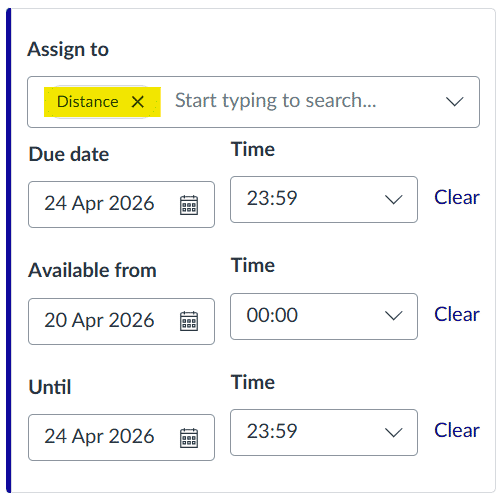
Only students in the section to which an item is assigned can see and access it.
Sections appear in Settings under Sections, and also in People.
It may take up to about one hour for sections created in Ugla to appear in Canvas.
Sections are not the same as course groups, and the two should not be confused.
Sections are especially useful in large courses and can save teachers time.
It is best to use sections only when the student grouping is fixed for the duration of the course. If the grouping is temporary or only some students need a different assignment on a single occasion, it is usually better to assign the item to individual students. Canvas supports assigning items to everyone, to individual students, or to course sections.
Creating sections in Ugla
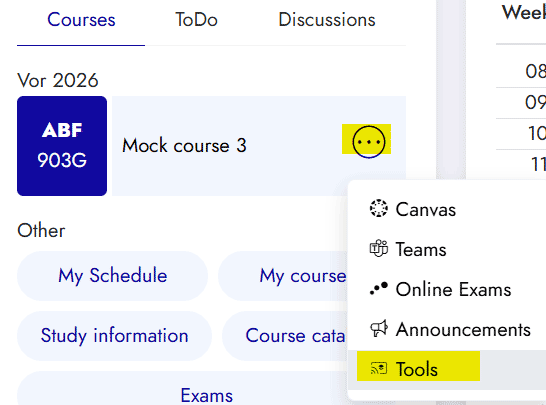
- On the Ugla front page, open the three-dot menu next to the course and select Tools.

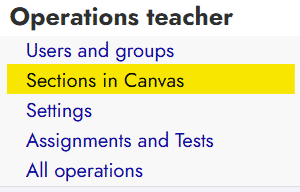
- Under Operations teacher, click Sections in Canvas.

- Enter a name for the section and click Save.
- Then select the students who should belong to that section.
Editing section enrolments
To change which students belong to a section, click Edit. The sections will appear as columns next to the student names, where you can tick the appropriate boxes.
Deleting a section
To delete a section, open the section overview and click the trash icon next to the section.